App Notification Settings: How to Manage Digital Distractions
Modern life is full of pings and buzzes. It’s important to stay connected, but too many interruptions can be tiring. They also make it hard to focus during the day.
It’s not about cutting off from the world. Instead, it’s about controlling your device. This way, only the most important alerts get through to you.
This guide will show you how to focus better. You’ll learn to do a deep check, pick out key alerts, and have quiet times for sleep.
Changing your app notification settings makes your day calmer. It keeps your personal time safe and your digital space peaceful and productive.
Why App Notification Settings Matter for Focus and Well-Being
Getting calm in today’s world needs a smart plan for your device. By controlling your alerts, you can manage digital distractions better. This lets you get back your time. Good notification management means making room for what’s important.
How frequent alerts divide attention
Every phone alert makes your brain jump. This constant switching makes it hard to focus on big tasks. Frequent interruptions make your mind tired all day.
The difference between useful updates and digital noise
Not all alerts are the same. Some are important, like security updates. Others are just digital noise to keep you hooked.
It’s key to know the difference. By reducing phone notifications, you get rid of the junk. You keep what really helps you.
How notifications affect work, sleep, and personal time
Too many alerts can mess up your life. They can ruin your work, wake you up at night, or interrupt talks with family. Keeping your digital well-being means setting limits. This respects your need for rest and being present.
Choosing a calmer notification goal
You don’t have to turn off all alerts to be calm. Aim for a balance where you only get useful ones. Setting a goal to reduce phone notifications makes you feel in charge. By tweaking your notification settings, you build a better tech relationship.
Step 1: Audit Every App That Sends Notifications
Start by checking all apps that send you notifications. This helps you know which ones are important. You can then change your app notification settings to focus better.
Review notification activity on an iPhone
Apple has tools to show you what’s sending you notifications. You can adjust your iPhone notification settings based on your daily habits.
Review notification activity on an Android phone
Android has tools to track all your alerts. These tools are key for improving your Android notification settings.
Group apps by urgency, value, and distraction risk
After checking your data, sort your apps. This makes it easier to choose which ones to see on your lock screen.
- High Urgency: Communication tools and security alerts.
- Medium Value: Productivity apps and calendar reminders.
- Low Value: Marketing, social media, and game notifications.
Identify alerts that can be removed immediately
Some apps are distracting but not useful. Remove these first to improve your focus.
| App Category | Distraction Level | Action Required |
|---|---|---|
| Social Media | High | Disable alerts |
| Shopping | Medium | Limit frequency |
| Security | Low | Keep enabled |
By removing distractions, you make your digital space calmer. This first step makes setting up your notifications easier.
Step 2: Decide Which Alerts Deserve Immediate Attention
Sorting your alerts is key to taking back your time. By customizing notifications, you focus on what’s important. This way, you know what’s real and what’s just noise.
Separate safety, security, and time-sensitive alerts
Always keep alerts about safety and security on. This includes warnings about bank fraud, two-factor codes, or severe weather. These are urgent and need your quick action to keep you safe.
Keep direct messages from essential contacts manageable
Messages from family, close friends, or your boss are important. You can customize notifications for these people. But remember, you also need time for work or rest.
Delay promotions, recommendations, and engagement reminders
Apps often try to get your attention with reminders. Emails, social media likes, and shopping tips are not urgent. Turn off these notifications to avoid distractions all day.
Use the question “Does this require action now?”
Before keeping an alert, ask if it needs action right away. If not, it can wait. This helps you avoid turning off too many notifications, keeping only the most useful ones.
Examples of alerts that can usually wait
- Social media engagement updates or likes.
- Shopping app sales and promotional offers.
- Game progress or daily login reminders.
- News headlines that are not breaking emergencies.
Examples of alerts that may need immediate delivery
- Direct messages from family members.
- Security alerts regarding account access.
- Time-sensitive calendar invites or meeting reminders.
- Critical work-related project updates.
Using Do Not Disturb modes well starts with sorting your alerts. This way, only the most important messages reach you. Here’s a quick guide on handling different alerts.
| Alert Category | Urgency Level | Recommended Action |
|---|---|---|
| Security/Banking | High | Keep Enabled |
| Direct Messages | Medium/High | Keep Enabled |
| Promotions | Low | Disable/Mute |
| Social Media | Low | Use Do Not Disturb |
Step 3: Turn Off Unnecessary Notifications at the Source
You can focus better by changing app notification settings. Start by fixing the source of each alert. This way, only important info shows up on your screen.
Disable notifications for individual apps on an iPhone
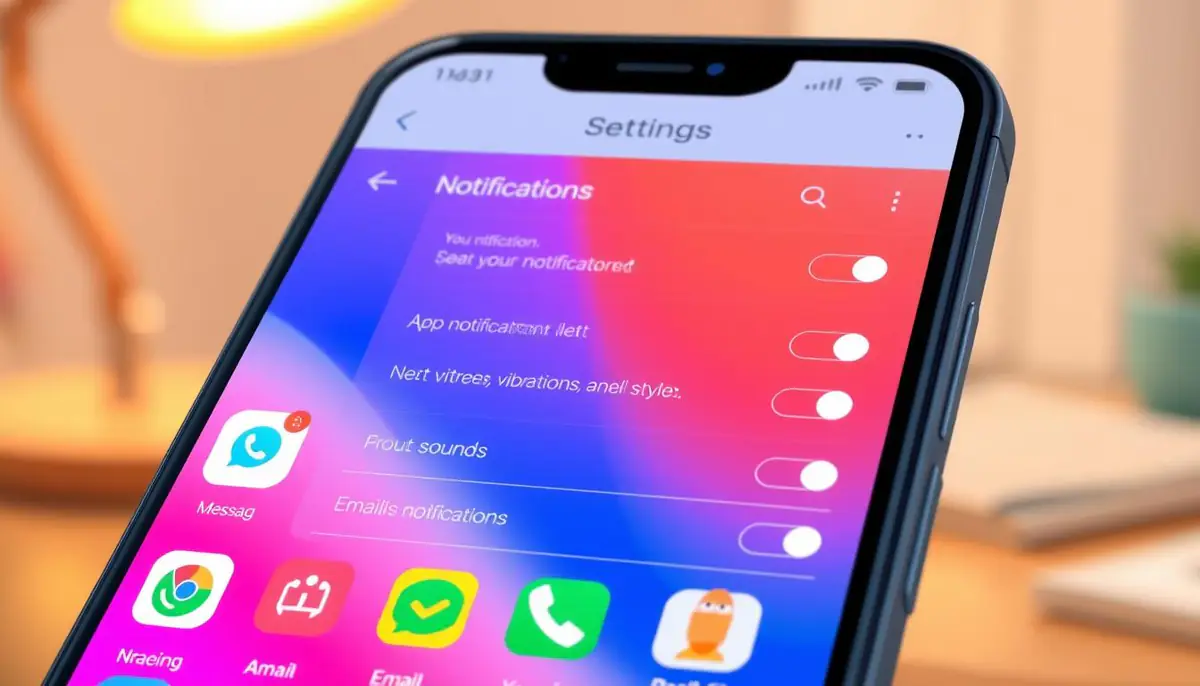
Open Settings, select Notifications, and choose an app
First, go to your device’s main Settings menu. Look for the Notifications tab. It lists all apps on your phone. Pick an app to see its iPhone notification settings.
Turn off Allow Notifications or remove specific alert types
In the app menu, turn off “Allow Notifications” to stop all alerts. Or, turn off app notifications for certain types. You can keep the app icon badge for important updates.
Disable notifications for individual apps on Android
Open Settings, select Notifications, and adjust app permissions
Android users, go to Settings and tap Notifications. Here, you can manage Android notification settings for each app.
Turn off notification categories instead of blocking everything
Android lets you control alert types. Block certain alerts, like ads, but keep messages coming through.
Unsubscribe from marketing alerts inside apps and email services
Many distractions come from in-app notification settings. Here’s how to reduce phone notifications:
- Look in shopping and news app settings to stop promo alerts.
- Click “Unsubscribe” in marketing emails to avoid inbox clutter.
- Check your account profile on web services to turn off reminders.
Recheck permissions after major app updates
App updates often bring new alert types. Check your permissions regularly. This stops unwanted alerts from coming back.
Step 4: Customize Sounds, Banners, Badges, and Lock Screen Alerts
Changing how you see alerts is the first step to a better digital life. By tweaking your app notification settings, your device can work for you. This way, you get the info you need without being bothered all the time.
Silence alerts without blocking important information
You don’t have to pick between being silent or always interrupted. Many systems let you send alerts to your notification center quietly. This way, you stay updated on your own schedule.
Remove attention-grabbing banners and pop-ups
Banners can break your focus during important work. You can customize notifications to stop these visual distractions. But, you still see the alert later. This keeps your work flow smooth all day.
Hide notification previews to protect privacy
Private info on your lock screen notifications can be risky in public. You can set your device to hide message content until you unlock it. This keeps your private messages safe from others.
Clear notification badges that encourage compulsive checking
Red notification badges on app icons make you want to check them. Turning off these badges helps you avoid mindless app opening. This way, you control when you check your apps.
Use different sounds or vibration patterns for high-priority contacts
Give special notification sounds to important contacts. This way, you know right away who’s trying to reach you. It helps you stay connected with the people who matter most.
When visual and sound cues are more distracting than helpful
Sometimes, even important alerts can be too much. During deep focus, stressful meetings, or when you need rest, even a small vibration can mess with your mind. Knowing when to ignore alerts is important for a good tech-life balance.
- Disable banners during work hours to prevent visual distraction.
- Use silent delivery for non-urgent apps to keep your history clean.
- Hide previews to keep your personal data secure from prying eyes.
- Remove badges to stop the cycle of compulsive app checking.
Step 5: Use Focus Modes, Do Not Disturb, and Scheduled Quiet Time
Creating quiet times helps fight digital tiredness. Users can set up custom notifications to fit their day. This way, tech works for us, not against us.
Set up Focus on an iPhone for work, sleep, and personal time
Apple has great tools to block distractions. You can change iPhone notification settings for different times of the day.
Allow notifications from selected people and apps
In a Focus mode, pick who and what you want to hear. This lets important updates get through while others stay quiet.
Connect Focus modes to schedules, locations, and calendars
Automation keeps things steady. Turn on a mode when you get to work, at a certain time, or for a meeting.
Configure Do Not Disturb and notification modes on Android
Android has flexible Do Not Disturb options. Changing these Android notification settings helps focus during busy times.
Create exceptions for calls, alarms, and urgent conversations
Make rules for calls and alarms to get through. This safety feature lets emergencies through while blocking other alerts.
Schedule recurring quiet periods
Setting quiet hours helps make a good routine. Your phone will automatically go quiet in the evening or at lunch.
Use temporary silence during meetings, meals, and focused tasks
For quick quiet, just toggle it. Turn on a temporary silence for an hour or until you leave a place.
Warn contacts when notifications are paused when appropriate
Modern systems let you share your status. When Focus mode is on, apps tell contacts you’re not checking messages right away.
Step 6: Manage Notifications Inside Social, Shopping, and News Apps
Managing your digital world goes beyond your phone’s main settings. You can turn off alerts, but the best control is in in-app notification settings. These settings let you make detailed changes that system settings can’t.
Reduce social media engagement prompts
Social apps try to keep you hooked with alerts. By checking the settings in apps like Instagram or Facebook, you can cut down on digital noise.
Turn off likes, comments, suggested posts, and live-stream alerts
You don’t need to know every time someone likes your post. It’s good to disable notifications for likes and comments to stop constant checking. Also, turning off alerts for suggested posts and live streams saves you from algorithmic distractions.
Limit shopping reminders, price alerts, and promotional messages
Shopping apps send lots of alerts to get you to buy. By going to the notification settings in your shopping apps, you can cut down on these. Stick to updates like order tracking, and skip the marketing messages.
Choose only the news topics and breaking alerts that matter
News apps can flood you with updates. Instead, pick the topics that really matter to you. This way, you stay informed without feeling overwhelmed by every little news.
Control video, gaming, and streaming recommendations
Streaming and gaming services send reminders to keep you watching. You can turn off app notifications for these. This stops them from interrupting your day with unwanted suggestions.
Review in-app settings instead of relying only on phone settings
Many think system controls are enough. But in-app notification settings have special categories for alerts and email notifications that keep going even when your app is silenced. Checking these settings gives you full control over your digital life.
Step 7: Create a Notification Routine That Protects Attention
Make your device settings follow a daily pattern. This helps keep your focus all day. Your habits are key to managing digital distractions well. A set routine makes sure tech helps you, not hinders.
Choose specific times to check nonurgent messages
Don’t check every message right away. Pick times to look at your inbox and social media. This stops you from always being half-attentive.
By only checking messages at set times, you take back control of your day.
Batch email, social, and news notifications into set periods
Check your email notifications and social updates a few times a day. This cuts down on switching tasks. Try to do it during your lunch or at the end of work.
Keep the phone away during deep work and bedtime
Keep your phone away to focus better. Put it in another room or drawer during deep work. Also, have quiet hours before bed to relax without alerts.
Use a smartwatch selectively instead of duplicating every alert
A smartwatch should only show important alerts. Turn off all other notifications. Let only important calls from family reach your watch.
Build a simple response rule for urgent and nonurgent messages
Have rules for different messages. Treat texts from friends as urgent, but newsletters as low-priority. Use Focus mode or Do Not Disturb to follow these rules.
How to avoid replacing notification checking with manual checking
Don’t check your phone manually when alerts stop. Do deep work tasks that need your full focus. If you want to check, take a breath or stand up instead.
| Strategy | Primary Benefit | Implementation Difficulty |
|---|---|---|
| Batching Alerts | Reduces cognitive load | Low |
| Focus mode | Blocks distractions | Medium |
| Do Not Disturb | Ensures deep work | Low |
| Quiet hours | Improves sleep quality | Medium |
Step 8: Test, Measure, and Refine Notification Choices
Change how you use technology by trying new notification settings. Don’t just try them once. Make a plan to test them for a while. This way, your tech can really help you.
Run a one-week notification reset
Try a seven-day test with your new settings. Don’t go back to old ways right away. This lets you see what alerts are really useful.
Track interruptions, stress, focus, and missed important alerts
Keep a log of when you get interrupted. Watch your stress and focus levels. If you miss important stuff, change your notification management plan.
Review Screen Time on an iPhone
iPhone users should check Screen Time often. It shows how many alerts you get each day. This helps you see which apps are causing trouble.
Review Digital Wellbeing on Android
Android users can use the digital well-being dashboard. It shows how much you use your phone and which apps are most active. This helps you decide which alerts to keep.
Restore only notifications that provide clear value
After testing, only keep alerts that are really useful. If an app doesn’t help you, turn off its alerts. Keep your phone screen clean for better digital well-being.
Signs that an app should remain silent
- The alert provides information that is not time-sensitive.
- You find yourself checking the app out of habit rather than necessity.
- The notification content is purely promotional or meant to drive engagement.
Signs that an alert setting needs adjustment
- You consistently miss important messages from key contacts.
- The sound or vibration pattern is too intrusive for your current environment.
- You feel a sense of anxiety every time the phone lights up.
Step 9: Maintain Healthy App Notification Settings Over Time
Keeping your digital life balanced is an ongoing task. After you clean up your apps, keep watching. This way, your device helps you stay productive, not just interrupt you.
Review notification permissions once each month
Make a habit of checking your app notification settings every month. This helps you catch apps that sneak back in or change their ways.
Update settings when work, school, travel, or family needs change
Your life changes, and so should your digital habits. When you start a new job, go back to school, or travel, update your notification management to fit your new life.
Prevent new apps from creating automatic notification overload
When you get a new app, it might send too many alerts. Check the in-app notification settings right away. This way, you only get alerts when you really need them.
Teach household members how to respect quiet periods
Talking about quiet times is key in your home. Tell your family why you turn off your phone during dinner or study. This helps everyone in your home.
Use a balanced approach instead of trying to eliminate every alert
You don’t need complete silence. Some alerts are useful. Try to get only the alerts that really help you in your daily life.
| Notification Type | Action Strategy | Priority Level |
|---|---|---|
| Security Alerts | Keep Enabled | High |
| Social Mentions | Batch Check | Low |
| Calendar Events | Keep Enabled | Medium |
Warnings about missing emergency, security, or account alerts
It’s good to cut down on digital noise. But don’t turn off important alerts. Make sure emergency alerts, bank security codes, and account updates are always on. This way, you never miss something important.
Conclusion
Controlling your phone alerts changes how you see the world. It makes technology work for you, not distract you all the time.
Managing your phone well means making smart choices. Check your apps, pick important contacts, and have quiet times. This helps you focus better, sleep deeper, and feel good about your digital life.
Trying it for a week shows what’s really important. Keep the alerts that matter and ignore the rest. Check your settings every month to keep up with your life.
Having a good balance with your devices is key. Small changes can make a big difference in how productive and relaxed you feel. Start now to get back your attention and live a calmer, more focused life.